
Must-Know Best Practices for Mobile Device Security
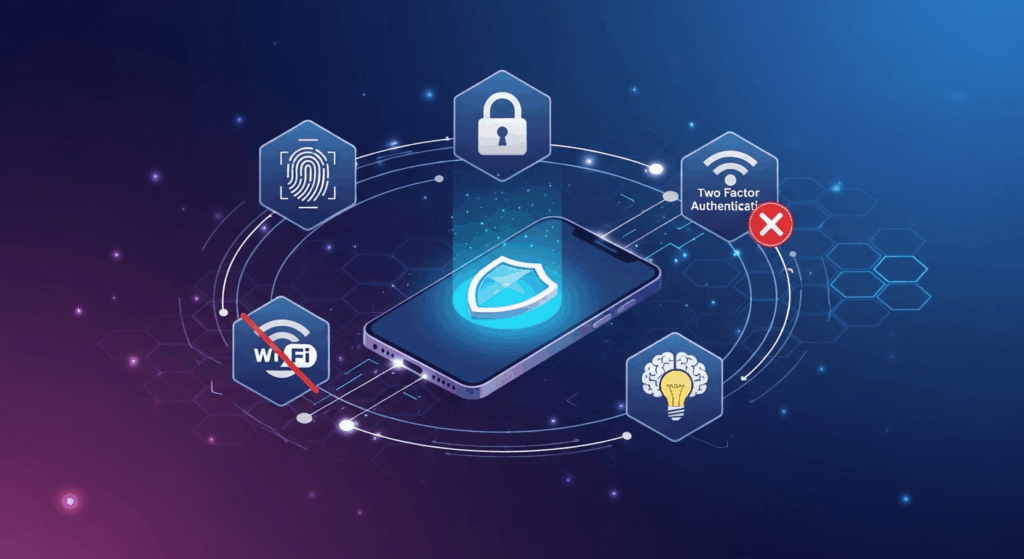
In an age where our entire lives—from banking and communication to personal memories and professional work—are stored on a device that fits in our pocket, mobile security is no longer an optional extra; it's a fundamental necessity. These devices are powerful gateways to our most sensitive information, making them prime targets for a wide array of digital threats. As cybercriminals become more sophisticated, simply having a passcode is not enough. To truly safeguard your digital life, you must adopt a comprehensive, multi-layered approach. Understanding and implementing the best practices for mobile device security is the most critical defense you can build to protect your privacy, identity, and data from falling into the wrong hands.
The Foundation: Securing Your Device Physically and at the Lock Screen
Before diving into complex software solutions, the first line of defense is always the most immediate one: the physical device and its primary access point. A lost or stolen phone with a weak lock screen is an open invitation for data theft. Building a strong foundational layer of security at this level is non-negotiable and serves as the bedrock upon which all other security measures are built. It’s the digital equivalent of locking your front door before setting up an alarm system.
This foundational security involves more than just a simple password. It's a combination of strong authentication methods, proactive tracking and recovery tools, and a conscious awareness of your physical surroundings. Neglecting this initial layer renders many subsequent security efforts moot. After all, if an attacker can gain physical access to your unlocked device, they can often bypass other protections with relative ease. Therefore, mastering these basic but crucial practices is the first and most important step in your mobile security journey.
Treating your device with the same care as your wallet or house keys is a mindset shift that significantly enhances security. The goal is to make unauthorized access as difficult and time-consuming as possible, giving you a better chance to react, locate your device, or remotely secure your data before any significant damage is done.
Mastering Strong Passcodes and Biometrics
The most common point of failure in mobile security is a weak or easily guessable lock screen passcode. Gone are the days when a simple four-digit PIN was considered sufficient. Cybercriminals can use brute-force software to crack these short codes in minutes. The best practice today is to use a strong alphanumeric passcode—a combination of letters (both uppercase and lowercase), numbers, and symbols that is at least six to eight characters long. Avoid using obvious information like your birthdate, anniversary, or sequential numbers (e.g., "123456"). The longer and more complex your passcode, the more exponentially difficult it becomes to crack.
In addition to a strong passcode, modern smartphones offer powerful biometric security features like fingerprint scanners (Touch ID) and facial recognition (Face ID). These methods offer a fantastic blend of convenience and security, as they are unique to you and much faster than typing a complex password every time. However, it's crucial to understand that biometrics are a convenience layer built on top of your passcode. Your device will periodically require your passcode for verification, especially after a restart or a failed biometric attempt. Therefore, a strong passcode remains essential even when you primarily use biometrics for daily unlocking.
The Importance of "Find My Device" and Remote Wipe
Despite our best efforts, phones can get lost or stolen. In this scenario, having a remote tracking and management feature enabled is your most powerful tool. For iOS users, this service is called Find My, and for Android users, it's Find My Device. Both services should be enabled as soon as you set up a new phone. These tools allow you to use another device to see your phone's last known location on a map, play a sound to help you find it if it's nearby, or display a message on the lock screen with a contact number.
The most critical feature of these services, however, is the remote wipe capability. This is your nuclear option. If you are certain your device is permanently lost or stolen and contains sensitive data, you can remotely erase all information on it, restoring it to its factory settings. This action ensures that even if someone eventually bypasses your lock screen, your personal photos, messages, emails, and financial information are gone. While you lose the data on the device itself (highlighting the importance of backups, which we'll cover later), you protect yourself from the far greater damage of identity theft and privacy invasion.
Physical Security Awareness
Digital protections mean very little if you are careless with the physical device itself. Developing a strong sense of situational awareness is a key, yet often overlooked, security practice. This means not leaving your phone unattended on a table at a café, in a visible spot in your car, or out of your sight in a public place. Treat your smartphone with the same level of precaution as you would a wallet full of cash and credit cards.
This awareness extends to "shoulder surfing," where someone watches over your shoulder to see you enter your passcode or other sensitive information. Be mindful of your surroundings when unlocking your device or entering passwords in crowded places like public transport or queues. Using biometrics can help mitigate this risk, but it’s still important to be discreet. Simple habits, like keeping your phone in a secure pocket or bag when not in use, can dramatically reduce the risk of opportunistic theft and snooping.
Fortifying Your Digital Gates: Software and App Security
Once your device's physical and lock-screen security is solid, the next battleground is the software itself. Your operating system (OS) and the applications you install are the gateways through which most digital threats, such as malware, spyware, and viruses, enter your device. A proactive and discerning approach to software management is crucial for maintaining a secure mobile environment.
This involves a three-pronged strategy: keeping everything up-to-date, being extremely selective about the apps you install, and diligently managing the permissions those apps are granted. Hackers are constantly searching for vulnerabilities—known as exploits—in software code. Developers, in turn, are constantly releasing updates to patch these holes. By staying on top of updates and carefully curating your app ecosystem, you close the doors that cybercriminals are trying to open.
Think of your phone's software as a fortress. Updates reinforce the walls, vetting apps is like checking IDs at the gate, and managing permissions is like restricting access to sensitive areas within the fortress. Each step is vital for a comprehensive defense.
Keeping Your Operating System and Apps Updated
One of the most effective and simplest security measures you can take is to keep your device's operating system (iOS or Android) and all your applications updated. Software updates are not just about adding new features or changing the look of an icon; their most critical function is to deliver security patches. When a security vulnerability is discovered, developers work quickly to fix it and release a patch. If you delay updating, you are essentially leaving your device exposed to known threats.
To make this easier, enable automatic updates for both your OS and your apps. On iOS, you can find this under Settings > General > Software Update. On Android, it's typically under Settings > System > System update. For apps, automatic updates can be enabled within the App Store or Google Play Store settings. By doing so, you ensure you receive critical security patches as soon as they are available, often without you even having to think about it. This simple habit drastically reduces your attack surface.
Vetting Apps: The Gatekeeper to Your Data
Not all apps are created equal. While official storefronts like the Apple App Store and Google Play Store have security checks in place, malicious apps can sometimes slip through the cracks. The risk is significantly higher if you "sideload" apps from third-party websites or unofficial app stores. As a rule of thumb, you should stick to the official stores for all your app downloads.
Even within official stores, exercise due diligence before hitting the "install" button. Look for signs of a trustworthy app:
- Check the developer: Is it a reputable company or an unknown individual with no history?
- Read the reviews: Look for recent, well-written reviews. A flood of generic, five-star reviews can be a red flag for a fake app. Pay close attention to negative reviews that mention security or privacy concerns.
- Look at the download count: Popular, legitimate apps usually have millions of downloads. A low download count for an app pretending to be from a major brand is suspicious.
- Check for typos: Malicious copycat apps often have spelling or grammar errors in their name or description.
Understanding and Managing App Permissions
When you install a new app, it will ask for permissions to access certain parts of your phone, such as your camera, microphone, contacts, location, and storage. Many users simply click "Allow" on everything without a second thought, which can be a grave mistake. Granting excessive permissions to an app gives it unfettered access to your personal data. A simple game does not need access to your contact list, and a calculator app has no business knowing your precise location.
Adopt the principle of least privilege: grant an app only the permissions it absolutely needs to function. Modern versions of iOS and Android allow for granular control over permissions. You can often choose to grant permission only while the app is in use, or just once. Regularly audit your app permissions by going into your phone's privacy settings. If you find an app with permissions it doesn’t need, revoke them immediately. If an app refuses to function without an unnecessary permission, consider it a red flag and uninstall it.
Navigating the Web and Networks Securely
Your mobile device is a window to the internet, but that window opens in two directions. While you access the web, threats from the web can also access your device. Securing your connection and being vigilant about the content you interact with is a critical aspect of mobile security. The most common attack vectors in this domain are unsecured networks and deceptive social engineering tactics like phishing.
Protecting yourself requires a combination of technical tools and user awareness. Understanding the inherent risks of public Wi-Fi, learning to spot the tell-tale signs of a phishing attempt, and utilizing tools like a VPN can transform your device from a vulnerable target into a secure portal for browsing, communication, and transacting online. This proactive posture is essential for safeguarding your login credentials, financial information, and personal identity.
Whether you're sipping coffee at a local cafe or browsing from the comfort of your home, the principles of secure navigation remain the same. The internet is a public space, and you must take precautions to protect your private data as it travels across these digital highways.
The Dangers of Public Wi-Fi (and How to Mitigate Them)
Free public Wi-Fi networks in airports, hotels, and cafes are a convenience, but they are also a security minefield. These networks are often unencrypted, meaning that any data you send or receive can be intercepted by a bad actor on the same network. This is known as a Man-in-the-Middle (MitM) attack. A hacker can position themselves between your device and the Wi-Fi router, monitoring all your traffic, capturing passwords, credit card numbers, and login credentials.
To protect yourself, avoid performing sensitive activities on public Wi-Fi. This includes online banking, shopping, or logging into important accounts. If you absolutely must use public Wi-Fi, ensure the websites you visit use HTTPS (the 'S' stands for secure), indicated by a padlock icon in your browser's address bar. For a much stronger layer of protection, use a Virtual Private Network (VPN), which we will discuss next. When in doubt, it is always safer to use your phone's cellular data connection (4G/5G), which is encrypted and far more secure than an open Wi-Fi network.
Identifying and Avoiding Phishing and Smishing Attacks
Phishing remains one of the most effective and widespread cyber threats. On mobile devices, this often comes in the form of emails or text messages (the latter known as "smishing"). These messages are designed to trick you into revealing sensitive information by appearing to be from a legitimate source, such as your bank, a delivery service, or a tech company like Apple or Google. They often create a sense of urgency, warning that your account has been compromised or that you need to claim a prize.
The primary goal of a phishing attack is to get you to click a malicious link or open a compromised attachment. The link may lead to a fake website that looks identical to a real one, designed to steal your login credentials when you try to sign in. To protect yourself, be extremely skeptical of unsolicited messages. Never click on links or download attachments from unknown senders. Scrutinize the sender's email address or phone number. Hover over links (if possible on your device) to see the true destination URL. Remember that legitimate companies will almost never ask you to provide your password or other sensitive info via email or text.
Employing a Mobile VPN
A Virtual Private Network (VPN) is one of the most powerful tools for mobile security, especially when you're on the go. A VPN creates a secure, encrypted tunnel between your device and the internet. All your web traffic is routed through this tunnel, making it unreadable to anyone trying to snoop on your connection, including your Internet Service Provider (ISP), network administrators, or hackers on a public Wi-Fi network.
Using a VPN is simple. You install a VPN app on your phone, choose a server location, and turn it on. Once connected, your device's IP address is masked, and your data is encrypted. This is particularly crucial when using public Wi-Fi, as it effectively neutralizes the threat of Man-in-the-Middle attacks. When choosing a VPN, opt for a reputable, paid service. "Free" VPNs often have questionable privacy policies and may log your activity or even sell your data to third parties, defeating the purpose of using a VPN in the first place.
Data Management and Backup Strategies
Effective mobile security isn't just about preventing breaches; it's also about preparing for the worst-case scenario. If your device is lost, stolen, or irreparably compromised by malware, having a robust data management and backup strategy can be the difference between a minor inconvenience and a major disaster. Your personal photos, important documents, and contacts are often irreplaceable, and protecting them is paramount.
This involves a proactive approach to backing up your data, ensuring that data stored on your device is properly encrypted, and knowing how to securely erase your information when you finally dispose of or sell your phone. These practices form a crucial safety net. A good backup ensures data continuity, encryption protects your data from being read if the device is compromised, and secure deletion prevents your personal information from being recovered by the next owner of your device.

By integrating these data management habits into your routine, you create a resilient security posture that protects your information not only from external threats but also from physical loss and device end-of-life risks.
The 3-2-1 Backup Rule for Mobile
The 3-2-1 backup rule is a time-tested strategy from the world of IT that can be adapted for personal mobile use. It states that you should have:
- Three total copies of your data.
- On two different types of media.
- With at least one copy stored off-site.
For a mobile user, this could look like this: The first copy is the data on your phone itself. The second copy can be an automatic cloud backup (like iCloud for Apple or Google One/Google Photos for Android). This serves as your primary off-site copy. The third copy could be a manual backup to a physical device you own, such as your personal computer or an external hard drive. This fulfills the "two different media types" rule (cloud vs. physical drive) and gives you an extra layer of redundancy in case of an issue with your cloud provider.
Leveraging Encryption for Data at Rest
Encryption is the process of scrambling your data so that it can only be read by someone with the correct key—in this case, your device's passcode. When your data is encrypted "at rest," it means the information stored on your phone's internal memory is protected. If a thief steals your phone and manages to physically extract the memory chip, they still won't be able to read your data without the encryption key.
Fortunately, both modern iOS and Android devices encrypt user data by default as long as you have a passcode, PIN, or pattern set. This is a massive security feature that runs in the background, protecting you constantly. You can verify this in your security settings. On Android, the option is typically under Settings > Security & privacy > More security settings. On iOS, data protection is automatically enabled when you set a passcode. This built-in, always-on encryption is a cornerstone of modern mobile device security.
Securely Deleting Data Before Disposing of a Device
When you sell, trade in, or give away an old phone, simply performing a standard "factory reset" may not be enough to permanently erase your data. Forensic software can sometimes recover information from a device that has only undergone a basic reset. To ensure your personal data is gone for good, you must perform a secure wipe.
First, ensure your device is encrypted (as mentioned above). Because the data is scrambled, a factory reset that erases the encryption key makes the underlying data gibberish and virtually impossible to recover. Before resetting, be sure to sign out of all your accounts, especially your Apple ID or Google account, to deactivate services like Find My. Then, proceed with the factory reset, which can be found in your phone's settings (usually under System > Reset options on Android or Settings > General > Transfer or Reset iPhone on iOS). For the extremely paranoid, you can then load the phone with junk data (like recording a long video of a wall) and perform another factory reset to further overwrite any remnants of your original data.
Advanced Security Measures for the Vigilant User
For those who want to take their mobile security to the next level, there are several advanced practices that provide an even greater degree of protection. These measures go beyond the basics and require a more hands-on, proactive approach. They are designed to create additional layers of security that can thwart more sophisticated attacks and give you deeper insight and control over your digital footprint.
This includes implementing stronger authentication methods for your online accounts, conducting regular privacy audits, and learning to recognize the subtle signs that your device may have been compromised. While the foundational practices protect you from the most common threats, these advanced techniques help secure the broader ecosystem of accounts and services that your mobile device connects to.
Adopting these habits demonstrates a commitment to a truly holistic security posture. They empower you to not only protect the device itself but also the vast network of personal data associated with your digital identity.
Two-Factor Authentication (2FA): Your Non-Negotiable Shield
Two-Factor Authentication (2FA), also known as Multi-Factor Authentication (MFA), is arguably the single most important security measure you can enable for your online accounts. It adds a critical second layer of security to the login process. Even if a hacker steals your password, they still cannot access your account without the second factor. This second factor is typically something you have, like your phone.
There are several types of 2FA, but the most common are:
- SMS-based 2FA: A code is sent to you via text message. This is better than nothing, but it's vulnerable to SIM-swapping attacks.
<strong>Authenticator App-based 2FA:</strong> You use an app likeGoogle Authenticator,Microsoft Authenticator, orAuthy* to generate a time-sensitive code. This is far more secure than SMS and is the recommended method.
<strong>Hardware Security Keys:</strong> Physical keys (like aYubiKey*) that you plug into your device are the gold standard for 2FA.
You should enable 2FA on every single account that offers it, starting with your email, banking, and social media accounts. An account protected by 2FA is exponentially harder to compromise than one protected by a password alone.
Reviewing Privacy Settings on Your Device and Accounts
Your smartphone's privacy settings are a powerful dashboard that gives you control over what data your device and its apps can collect and share. It's a good practice to conduct a privacy audit every few months. Go to the Privacy section in your phone's settings and review everything. Check which apps have access to your location, contacts, microphone, and camera. Revoke any permissions that seem unnecessary.
This audit should also extend to the major accounts linked to your phone, such as your Google and Apple accounts. Both companies provide a "Privacy Checkup" or "Privacy & Security" dashboard that allows you to see and manage how your data is being used across their services. You can control your ad personalization settings, review your location history, and see which third-party apps have access to your account. Taking 30 minutes to review these settings periodically can significantly reduce your data exposure.
Recognizing Signs of a Compromised Device
Sometimes, despite all precautions, a device can become compromised with malware or spyware. Learning to recognize the symptoms is crucial for taking swift action. While some signs can also be caused by benign software bugs or an aging battery, a combination of them should raise a red flag.
Common signs of a compromised phone include:
- Sudden and drastic battery drain: Malware running in the background can consume a lot of power.
- Unusually high data usage: Spyware may be sending your data to a remote server.
- Sluggish performance: Your phone may feel unusually slow, crash frequently, or restart on its own.
- Strange pop-ups: Aggressive adware is a common sign of a malware infection.
- Overheating: The device feels hot to the touch even when it's not being used intensively.
- Unfamiliar apps or messages: Finding apps you don't remember installing or seeing sent messages you didn't write.
If you suspect your phone is compromised, the first step is to run a scan with a reputable mobile security app. Disconnect it from the internet to stop any further data transmission. Ultimately, backing up your essential data and performing a full factory reset is the most reliable way to remove persistent malware.
—
Common Mobile Security Threats and How to Mitigate Them
| Threat | Description | How to Protect Yourself |
|---|---|---|
| Malware/Spyware | Malicious software designed to steal data, display unwanted ads, or take control of your device. | Only install apps from official stores (App Store, Play Store). Keep your OS and apps updated. Use a reputable mobile security app. |
| Phishing/Smishing | Deceptive emails or text messages that trick you into revealing personal information or clicking malicious links. | Be skeptical of unsolicited messages. Never click on suspicious links. Verify sender information. Never provide passwords via email/text. |
| Unsecured Wi-Fi | Public Wi-Fi networks where hackers can intercept your data traffic (Man-in-the-Middle attacks). | Avoid sensitive tasks (banking, shopping) on public Wi-Fi. Use a VPN to encrypt your connection. Prefer using cellular data. |
| Physical Theft | The loss or theft of the device itself, giving a thief direct access to it. | Use a strong alphanumeric passcode and biometrics. Enable "Find My Device" or "Find My" for remote tracking and wiping. Be aware of your surroundings. |
—
Conclusion
In our hyper-connected world, your mobile device is the key to your digital kingdom. Protecting it is not a one-time task but an ongoing commitment to vigilance and good digital hygiene. As we've explored, a truly effective defense is a layered one, starting with robust physical and lock-screen security, fortifying your software and apps, navigating networks with caution, and managing your data with foresight. By combining strong passcodes, regular updates, careful app vetting, and an awareness of threats like phishing, you build a powerful shield around your personal information.
Implementing advanced measures like Two-Factor Authentication and conducting regular privacy audits elevates your security from proficient to formidable. While no system is ever 100% impenetrable, following these best practices drastically reduces your risk and makes you a much harder target for cybercriminals. Ultimately, the security of your mobile device is in your hands. By taking these proactive steps, you are not just protecting a piece of hardware; you are safeguarding your identity, your privacy, and your peace of mind.
—
Frequently Asked Questions (FAQ)
Q: Is an antivirus or mobile security app really necessary for my phone?
A: For Android users, a reputable mobile security app (from brands like Bitdefender, Norton, or Malwarebytes) is highly recommended. The open nature of Android makes it a larger target for malware. These apps can scan for malicious software, block dangerous websites, and provide anti-theft features. For iOS users, it's less critical due to Apple's "walled garden" approach, which makes it much harder for malware to infect the device. However, some security apps for iOS can still offer useful features like a VPN, phishing protection, and data breach alerts.
Q: How often should I update my phone and my apps?
A: You should install updates as soon as they become available. The best practice is to enable automatic updates for both your operating system and your applications. This ensures that critical security patches are applied immediately without you needing to manually check for them, providing continuous protection against the latest known vulnerabilities.
Q: Is facial recognition more secure than a fingerprint scanner?
A: Both are highly secure forms of biometric authentication. High-quality facial recognition systems, like Apple's Face ID, create a complex 3D map of your face and are extremely difficult to fool with a photo. High-quality fingerprint scanners are similarly secure and unique to the individual. The "better" option often comes down to user preference and the specific implementation by the device manufacturer. The most important thing is that both are significantly more secure than a simple 4-digit PIN.
Q: What is the single biggest mistake people make with their mobile security?
A: The single biggest mistake is using a weak, easily guessable passcode (or no passcode at all). Your passcode is the key that unlocks everything. A simple code like "1234," "0000," or a birthdate can be cracked in seconds. Without a strong passcode as a foundation, other security measures like encryption become far less effective. The second biggest mistake is failing to enable Two-Factor Authentication (2FA) on their critical online accounts.
***
Article Summary
This article provides a comprehensive guide to the best practices for mobile device security. It emphasizes a multi-layered defense strategy to protect personal data, privacy, and identity.
Key security pillars covered include:
- Foundational Security: Using strong, complex alphanumeric passcodes and biometrics (fingerprint/face ID). Enabling "Find My Device" for remote tracking and wiping, and maintaining physical awareness to prevent theft.
- Software and App Security: Keeping the operating system and all apps constantly updated to patch vulnerabilities. Vetting apps by checking developers and reviews, sticking to official app stores, and diligently managing app permissions based on the principle of least privilege.
- Secure Navigation: Avoiding sensitive activities on unsecured public Wi-Fi and using a VPN to encrypt your connection. Learning to identify and ignore phishing (email) and smishing (text) attacks by being skeptical of unsolicited links and requests for information.
- Data Management: Implementing a 3-2-1 backup strategy (three copies, two media, one off-site) using both cloud services and physical backups. Ensuring on-device encryption is active and securely wiping all data from a device before selling or disposing of it.
- Advanced Measures: Enabling Two-Factor Authentication (2FA), preferably using an authenticator app, on all important online accounts. Regularly conducting privacy audits on both the device and associated cloud accounts (Google/Apple) and learning to recognize the signs of a compromised device, such as rapid battery drain or high data usage.