
How to Protect Your Data on Public Wi-Fi: Stay Secure

Learn how to protect your data on public Wi-Fi with simple tips and tools to keep your information safe from hackers and maintain your privacy anywhere.
Ever wonder if that free Wi-Fi at your favorite coffee shop is a digital trap waiting to spring? In our hyper-connected world, public Wi-Fi networks are everywhere. But so are the risks they bring. We’re here to guide you through the maze of public Wi-Fi security.
From bustling airports to cozy cafes, public Wi-Fi spots offer convenience at the cost of potential vulnerability. But don’t worry – with the right know-how, you can enjoy safe browsing. We’ll explore foolproof strategies for data protection that’ll let you surf with confidence on any public network.
Ready to become a public Wi-Fi pro? Let’s dive into the world of digital safety. Discover how to stay one step ahead of cyber threats. Your online security adventure starts now!
Understanding the Risks of Public Wi-Fi Networks
Public Wi-Fi networks are easy to use, but they pose serious security risks. It’s important to know about the dangers in these networks. Let’s look at why they can be risky and how to protect ourselves.
Common Public Wi-Fi Security Threats
Connecting to public Wi-Fi can put your data at risk. Hackers might steal your passwords or inject malware into your device. Some common threats include:
- Man-in-the-middle attacks
- Evil twin networks
- Packet sniffing
- Malware distribution
Why Traditional Wi-Fi Security Isn’t Enough
Just because a network is password-protected doesn’t mean it’s safe. Even encrypted networks can be hacked. Cybercriminals have tools to get past traditional security. So, we need to take extra steps to stay safe.
Real-World Examples of Public Wi-Fi Breaches
Public Wi-Fi breaches are more common than you might think. In 2018, a hacker got into a hotel’s Wi-Fi and stole millions of customers’ data. Another time, a coffee shop’s free Wi-Fi was used to spread ransomware. These stories show why we need strong security when using public networks.
| Year | Location | Type of Breach | Impact |
|---|---|---|---|
| 2018 | Hotel Chain | Data Theft | Millions of customers affected |
| 2019 | Coffee Shop | Ransomware Distribution | Multiple devices infected |
How to Protect Your Data on Public Wi-Fi
Staying safe on public Wi-Fi needs smart actions and strong tools. We’ve gathered key ways to protect your data on shared networks.
Here are some important Wi-Fi security steps:
- Use a Virtual Private Network (VPN)
- Enable HTTPS and SSL protection
- Activate two-factor authentication
- Configure firewall settings
- Practice safe file sharing
Each step is vital for keeping your online privacy safe. Let’s explore how they fight off common public Wi-Fi dangers:
| Security Measure | Protects Against | Ease of Use |
|---|---|---|
| VPN | Data interception, Man-in-the-middle attacks | Moderate |
| HTTPS/SSL | Unsecured connections, Phishing attempts | Easy |
| Two-factor authentication | Unauthorized access, Password theft | Easy |
| Firewall | Malware, Network intrusions | Moderate |
| Safe file sharing | Data leaks, Unauthorized file access | Easy |
By using these data protection methods, you’ll greatly improve your safety on public Wi-Fi. In the next parts, we’ll look at each measure in more detail. This will help you protect your online privacy better.
Essential VPN Usage for Public Wi-Fi Security
Using a VPN is key when you’re on public Wi-Fi. It keeps your online actions safe from unwanted eyes and dangers. Let’s dive into how VPNs work and picking the right one for you.
How VPNs Protect Your Data
VPNs make a secure path for your internet use. They encrypt your data, making it unreadable to hackers or network snoops. This encryption keeps your private info safe, even on public networks.
Choosing the Right VPN Service
When picking a VPN, think about these things:
- Strong encryption protocols
- No-logs policy
- Server locations
- Connection speeds
- User-friendly apps
Setting Up VPN on Different Devices
Most VPNs have easy apps for many devices. Here’s a quick guide to set up VPN on common devices:
| Device | Steps |
|---|---|
| Smartphones | Download app, sign in, connect to server |
| Laptops | Install software, enter credentials, choose server |
| Tablets | Get app from store, log in, tap connect |
Using a VPN adds extra security to your online life. Always connect to your VPN before using public Wi-Fi to keep your data safe and private.
Enabling HTTPS and SSL Protection
When using public Wi-Fi, keeping your online activities safe is key. HTTPS encryption and SSL certificates are crucial for this. They make sure your data is protected by creating a secure link between your device and websites.
To browse safely, always check for the padlock icon in your browser’s address bar. This icon shows that a site uses HTTPS encryption. Many browsers also warn you before you visit an unsecured site, adding extra protection.
SSL certificates check if a website is real and encrypt data. Seeing “https://” at the start of a URL means the site is secure. This encryption makes your data unreadable to anyone who might try to intercept it on public Wi-Fi.
- Always check for “https://” in the URL
- Look for the padlock icon in your browser
- Use browser extensions that force HTTPS connections
- Avoid entering sensitive information on non-HTTPS sites
By choosing HTTPS and SSL-protected sites, you lower the risk of data theft on public Wi-Fi. Remember, secure browsing is your best defense against cyber threats in public places.
Two-Factor Authentication: Your Second Line of Defense
Two-factor authentication adds an extra layer of security when using public Wi-Fi. It combines something you know (your password) with something you have (like your phone) to verify your identity. Let’s explore how 2FA security can protect you on public networks and how to set it up.
Benefits of 2FA on Public Networks
Multi-factor authentication significantly enhances your online safety. Even if someone intercepts your password on a public network, they can’t access your accounts without the second factor. This extra step makes it much harder for cybercriminals to compromise your data.
Setting Up 2FA for Popular Services
Many online services now offer two-factor authentication. Here’s how to enable it for some popular platforms:
- Google: Go to your account settings and select “Security”
- Facebook: Navigate to Settings & Privacy, then Security and Login
- Twitter: Find the Security and account access section in Settings
Authentication Apps vs. SMS Verification
When setting up 2FA, you’ll often choose between authentication apps and SMS verification. While both improve security, authentication apps are generally considered safer. They generate time-based codes offline, making them less vulnerable to interception compared to SMS messages sent over networks.
By implementing two-factor authentication, you create a robust defense against potential threats on public Wi-Fi. It’s a simple yet effective way to safeguard your online presence.
Firewall Settings for Public Wi-Fi Safety
When using public Wi-Fi, your firewall is your first line of defense. Proper firewall configuration is key for network security. Let’s explore some important settings to enhance your Wi-Fi protection.

First, make sure your firewall is turned on. On Windows, you can find it in the Control Panel under System and Security. For Mac users, go to System Preferences and click on Security & Privacy.
Then, set your firewall to block all incoming connections. This stops hackers from getting into your device through open ports. You can still use the internet, but it’s safer.
- Set up application rules
- Enable logging
- Turn on stealth mode
Application rules control which programs can go online. Logging tracks any odd activity. Stealth mode makes your device invisible to others on the network.
Don’t forget to update your firewall often. Software updates include important security fixes. Keeping your firewall up to date ensures top Wi-Fi protection.
| Firewall Setting | Purpose |
|---|---|
| Block incoming connections | Prevents unauthorized access |
| Application rules | Controls internet access for specific programs |
| Logging | Tracks potential security threats |
| Stealth mode | Hides your device from other network users |
With these firewall settings, you’re ready to face public Wi-Fi risks. Stay alert and enjoy safer browsing!
Safe File Sharing and Cloud Access Practices
When using public Wi-Fi, protecting your data is key. We’ll look at ways to keep your files safe and secure while sharing or accessing them remotely.
Secure Cloud Storage Options
Encrypted cloud storage is a great way to protect your files. Services like Tresorit and pCloud use end-to-end encryption. This means your data stays safe, even if it’s intercepted.
File Encryption Methods
Encrypting files before sharing adds extra security. Tools like VeraCrypt let you create encrypted containers. This makes your sensitive documents unreadable without the right password.
Best Practices for Document Sharing
Here are some tips for secure file sharing:
- Use password-protected links when sending files
- Set expiration dates for shared links
- Avoid sharing sensitive documents over public Wi-Fi
- Utilize secure file transfer protocols (SFTP)
| Feature | Standard Cloud Storage | Encrypted Cloud Storage |
|---|---|---|
| Data Encryption | Basic | Advanced (End-to-End) |
| Access Control | Limited | Granular |
| File Sharing | Less Secure | Highly Secure |
| Data Protection | Moderate | Strong |
By following these secure file sharing practices and using encrypted cloud storage, you can greatly improve your data protection. This is important when working on public Wi-Fi networks.
Mobile Device Security Settings
Keeping your smartphone safe is key when using public Wi-Fi. We’ll look at security features for iOS and Android, plus tips for managing app permissions.
iOS Security Features
Apple’s iOS has strong protection for your phone. Turn on “Limit Ad Tracking” in Settings to cut down on data collection. Use “Find My iPhone” to find or erase your device if it’s lost.
Make sure to turn on automatic updates. This keeps your device safe from new threats.
Android Protection Measures
Android users can improve security by enabling “Google Play Protect.” It scans apps for malware. Use “Find My Device” for remote location and data wiping.
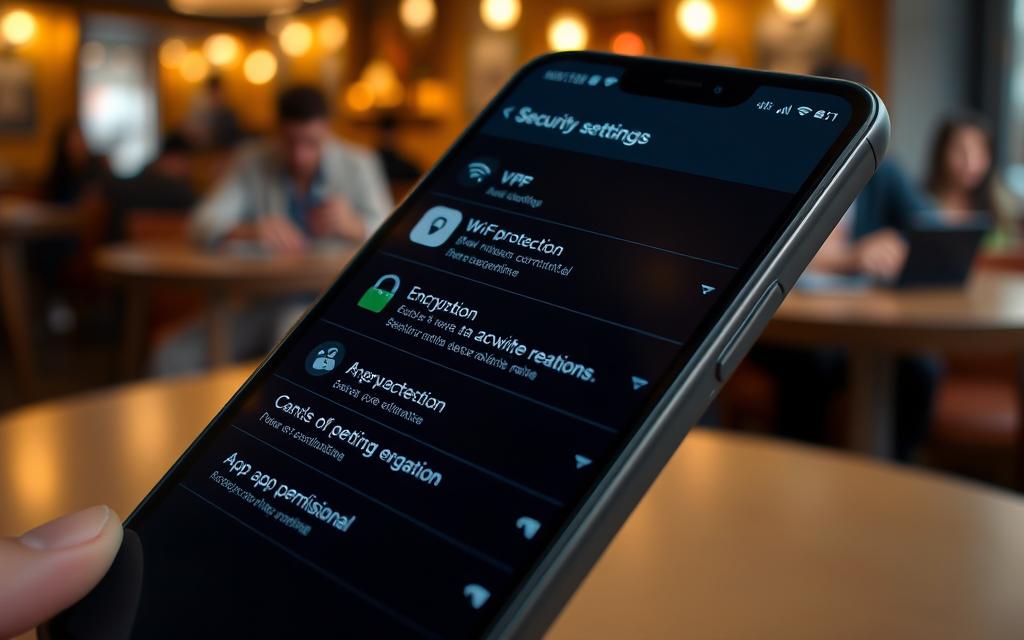
App Permissions Management
Managing app permissions is crucial for phone safety. Check and change permissions often:
| Permission Type | Potential Risk | Recommended Action |
|---|---|---|
| Location | Tracking your movements | Allow only when using the app |
| Camera | Unauthorized photo/video capture | Grant access selectively |
| Microphone | Eavesdropping | Limit to essential apps only |
| Contacts | Data harvesting | Restrict access when possible |
By using these security steps and managing app permissions, you’ll greatly improve your phone’s safety on public Wi-Fi.
Identifying Fake Wi-Fi Networks
Rogue Wi-Fi hotspots are a big threat to your online safety. Hackers set them up to steal your personal info. We’ll teach you how to spot these dangers and keep your data safe.
When you’re out, watch out for Wi-Fi with names like “Free Public Wi-Fi” or “Airport_Free_Internet”. These might be set by hackers. Always check the network name with the place you’re at.
Here are signs of fake networks:
- Misspelled network names
- Unsecured connections (no lock icon)
- Duplicate network names
- Slow connection speeds
To keep your Wi-Fi safe, use a Virtual Private Network (VPN) on public networks. It encrypts your data, making it tough for hackers to get your info. Stay alert to avoid falling for network spoofing and protect your data.
Conclusion
We’ve looked at key steps for staying safe on public Wi-Fi. We’ve talked about understanding risks and how to protect yourself. Using a VPN is a must when you’re on public networks.
It’s also important to use HTTPS, set up two-factor authentication, and manage app permissions. These steps add layers of security. They help keep your personal info safe from threats on public Wi-Fi.
By following these tips, you’ll greatly improve your online safety. Always be careful, keep your devices updated, and focus on protecting your digital world. With the right tools and knowledge, you can safely use public Wi-Fi and keep your data secure.
Worried about Wi-Fi security? Visit cyberzenhub.com for expert advice on how to protect your data on public Wi-Fi and browse safely wherever you go!
FAQ
What are the main risks of using public Wi-Fi?
Using public Wi-Fi can expose your personal data and financial info. Threats include man-in-the-middle attacks and malware. Always use security measures to protect your online accounts.
How does a VPN protect my data on public Wi-Fi?
A VPN encrypts your internet traffic. This creates a secure tunnel to the VPN server. It keeps your data safe from hackers, even on public Wi-Fi.
Is HTTPS enough to protect me on public Wi-Fi?
HTTPS encrypts data between your browser and websites. But, it’s not enough alone. Use a VPN with HTTPS for full protection on public Wi-Fi.
How can I tell if a public Wi-Fi network is fake?
Check the network name carefully. Avoid generic names like “Free Wi-Fi.” Verify the name with the establishment. Be cautious of networks without passwords in places that should have them.
What’s the best way to share files securely on public Wi-Fi?
Use encrypted cloud storage services to share files. Enable file encryption before sharing. Always use a VPN when accessing or sharing files on public networks.
How important is two-factor authentication for public Wi-Fi security?
Two-factor authentication (2FA) is key for public Wi-Fi security. It adds an extra layer of protection. Even if someone gets your login, they can’t access your accounts without the second factor.
Should I adjust my firewall settings when using public Wi-Fi?
Yes, adjust your firewall settings on public Wi-Fi. Enable your firewall and block incoming connections. This protects your device from threats on public networks.
Are there any specific security settings I should enable on my smartphone for public Wi-Fi?
Enable automatic Wi-Fi encryption and turn off auto-connect on your smartphone. Use a VPN app and keep your OS and apps updated. Manage app permissions to reduce data exposure on public Wi-Fi.
Can I safely access my online banking on public Wi-Fi?
Avoid accessing online banking on public Wi-Fi. If necessary, use a VPN, ensure HTTPS, and enable 2FA for your banking account.
How often should I update my devices and apps when using public Wi-Fi?
Update your devices and apps regularly, but it’s crucial on public Wi-Fi. Set updates to happen automatically and check for app updates before connecting to public networks.