
Personal Cybersecurity Best Practices: A Simple Guide
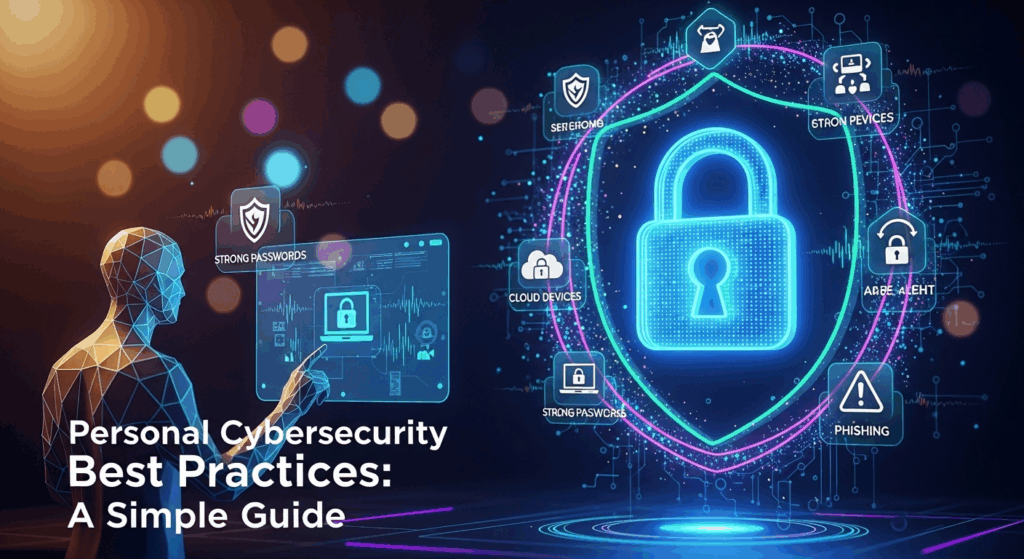
In our increasingly connected world, every click, share, and login expands our digital footprint. While this brings incredible convenience, it also opens up new avenues for cybercriminals to exploit. From financial theft to identity fraud, the threats are real and constantly evolving. This landscape makes it crucial to move beyond passive awareness and actively implement a robust defense system for your personal information. Mastering and consistently applying personal cybersecurity best practices is no longer an option for the tech-savvy; it's an essential life skill for everyone who uses the internet. This guide is designed to demystify the process, offering simple, actionable steps to fortify your digital life against a myriad of online threats.
Fortifying Your Digital Fortress: Strong Passwords and Authentication
The first line of defense in your personal cybersecurity arsenal is, without a doubt, your passwords. For decades, they have served as the primary keys to our digital kingdoms, guarding everything from casual social media accounts to sensitive banking and email platforms. Unfortunately, many users treat this crucial barrier with alarming carelessness, opting for simple, memorable, and easily guessable passwords like "123456," "password," or their pet's name. This is the equivalent of leaving your front door unlocked with a sign that says "Welcome." Hackers use sophisticated software that can try billions of password combinations per second, making weak credentials trivial to crack.
The principle of a strong password rests on three pillars: length, complexity, and uniqueness. Length is arguably the most important factor; a longer password exponentially increases the time and computational power required to crack it. Complexity involves a mix of uppercase letters, lowercase letters, numbers, and special characters (!, @, #, $, etc.), which further complicates brute-force attempts. Finally, uniqueness is paramount. Using the same password across multiple services is a catastrophic mistake. If one service suffers a data breach—an event that is increasingly common—cybercriminals will use the leaked credentials to try and access your other accounts in a process called credential stuffing.
To truly secure your accounts, however, a strong password alone is often not enough. This is where Multi-Factor Authentication (MFA), sometimes called Two-Factor Authentication (2FA), comes into play. MFA adds a second layer of security, requiring you to provide an additional piece of evidence to prove your identity besides your password. This could be something you have (like your phone), or something you are (like your fingerprint). Even if a hacker manages to steal your password, they will be stopped in their tracks without this second factor, making MFA one of the single most effective security measures you can enable.
Creating Unbreakable Passwords
The idea of creating and remembering a unique, 16-character complex password for every single online account you own sounds daunting, if not impossible. The key is to shift your strategy from simple words to complex systems. One highly effective method is to use passphrases instead of passwords. A passphrase is a sequence of random words strung together, like "Correct-Horse-Battery-Staple." This is significantly easier for a human to remember than `Tr0ub4dor&3`, yet it is vastly more secure due to its length. You can even add numbers and symbols for extra strength, such as "Correct-Horse2!Battery-Staple."
To manage this digital key-ring, a password manager is an indispensable tool. Reputable password managers like Bitwarden, 1Password, or LastPass act as an encrypted digital vault for all your credentials. You only need to remember one strong master password to unlock the vault. The manager can then generate, store, and auto-fill highly complex, unique passwords for every site you use. This solves the problem of password reuse and eliminates the mental burden of remembering dozens of cryptic character strings, making it a cornerstone of modern personal cybersecurity.
Embracing Multi-Factor Authentication (MFA)
Multi-Factor Authentication is the digital equivalent of requiring both a key and a PIN code to open a safe. It operates on the principle of providing multiple forms of verification before granting access. Once you've entered your password correctly, the service will prompt you for a second factor. This typically comes in one of several forms: a code sent via SMS to your phone, a time-sensitive code generated by an authenticator app (Google Authenticator, Authy), a physical security key (like a YubiKey), or a biometric scan (fingerprint or face ID).
While any MFA is better than none, some methods are more secure than others. SMS-based MFA is the most common but also the most vulnerable to "SIM-swapping" attacks, where a criminal tricks your mobile carrier into transferring your phone number to their device. Authenticator apps are a significant step up in security as the codes are generated on your device and are not transmitted over the vulnerable cellular network. For your most critical accounts—such as your primary email, financial institutions, and password manager—using an authenticator app or a physical security key is a non-negotiable best practice. Enabling MFA is a simple, one-time setup that provides continuous, powerful protection against account takeovers.
Navigating the Web Safely: Spotting and Avoiding Phishing Scams
While strong passwords and MFA protect your accounts from direct assault, they can be bypassed if you are tricked into giving your credentials away. This is the domain of phishing, a form of social engineering where attackers masquerade as a trustworthy entity to lure victims into revealing sensitive information. Phishing is not a technical hack against a system; it's a psychological hack against a person. These attacks are incredibly common and can arrive via email, text messages (smishing), or even phone calls (vishing).
Phishing messages are often designed to create a sense of urgency or fear. You might receive an email claiming your account has been compromised, your package delivery has failed, or you've won a prize. These emails will contain a link or an attachment. The link will lead to a fake website—a pixel-perfect clone of a legitimate site like your bank or a social media platform—designed to harvest your login credentials. The attachment will often contain malware, such as spyware or ransomware, that infects your computer upon opening.
The sophistication of these scams has grown immensely. Gone are the days of poorly written emails from a Nigerian prince. Modern phishing attempts can be highly personalized (spear phishing), using information gathered about you from social media or previous data breaches to make their bait more convincing. They exploit human trust and our natural inclination to react quickly to perceived problems. Therefore, the most powerful defense against phishing is a healthy dose of skepticism and the ability to recognize the tell-tale signs of a fraudulent message.
Recognizing Phishing Emails and Messages
Developing an eye for phishing requires slowing down and scrutinizing messages before you act. The first and most critical check is the sender's email address. While the display name might say "PayPal Support," hover your cursor over the address or tap on it to reveal the true origin. If it's from something like `support-paypal@secure-login-123.com` instead of an official `@paypal.com` domain, it's a scam. Other common red flags include:
- Generic Greetings: Legitimate companies you do business with will usually address you by your name, not "Dear Valued Customer."
- Urgent and Threatening Language: Phrases like "Urgent Action Required" or "Your Account Will Be Suspended" are designed to make you panic and bypass critical thinking.
- Spelling and Grammar Mistakes: While scammers are getting better, many phishing emails still contain awkward phrasing or obvious errors.
- Suspicious Links and Attachments: Never click a link or open an attachment you weren't expecting. You can hover your mouse over a link to preview the destination URL in the bottom corner of your browser. If the link text and the destination don't match, it's a major red flag. If you are unsure, go directly to the official website by typing its address into your browser manually.
Beyond Email: Vishing and Smishing
Phishing attacks are not confined to your inbox. Smishing (SMS phishing) uses text messages as the delivery vehicle. You might get a text claiming to be from your bank, a delivery service like FedEx, or a government agency, often with a shortened link. The same rules apply: be wary of unsolicited texts, especially those demanding immediate action or containing suspicious links. Never provide personal information or click on links sent via text unless you are absolutely certain of the sender's identity and were expecting the message.
Vishing (voice phishing) is even more personal, involving a phone call from a scammer. They might impersonate a tech support agent from Microsoft or Apple, claiming your computer is infected with a virus. Their goal is often to trick you into granting them remote access to your device or to purchase useless software or gift cards. The cardinal rule of vishing is simple: never trust an unsolicited inbound call. If someone calls claiming to be from your bank or a tech company, hang up. Find the official customer support number on the company's website and call them back to verify if there is a legitimate issue.
Protecting Your Devices: Software Updates and Antivirus Protection
Your computer, smartphone, and tablet are the gateways to your digital life. They store your photos, communications, and access tokens for countless online services. Consequently, securing these devices is as important as securing the accounts themselves. Cybercriminals are constantly searching for vulnerabilities in the software that runs on these devices—the operating systems (Windows, macOS, Android, iOS), web browsers, and applications. When they find a security hole, they develop exploits to take advantage of it, allowing them to install malware, steal data, or take control of your device.
This is why software updates are absolutely critical. When a company like Microsoft, Apple, or Google releases an update, it often includes "patches" that fix newly discovered security vulnerabilities. By delaying these updates, you are leaving your devices exposed to known threats. Hackers know that many users are slow to update, so they actively scan the internet for unpatched systems. Keeping your software up-to-date is one of the simplest yet most powerful personal cybersecurity best practices you can adopt.
Beyond patching vulnerabilities, you need a proactive defense against malicious software, or malware. This is where reputable antivirus and antimalware software comes in. This software acts as a security guard for your device, actively scanning files, emails, and web traffic for known threats like viruses, spyware, ransomware, and Trojan horses. While modern operating systems have good built-in protections, a dedicated, high-quality antivirus solution provides an essential, specialized layer of security that can detect and neutralize threats that might otherwise slip through.
The Critical Importance of Regular Updates
Every piece of software is a complex creation, and with complexity comes the potential for flaws. A "zero-day" vulnerability is a flaw that is discovered by hackers before the software developer is aware of it or has a chance to fix it. This creates a critical window of opportunity for attackers. When the developer releases a patch, the race is on: you need to apply the update before criminals can successfully exploit the vulnerability on your system.
The best way to win this race is to remove yourself from the equation by enabling automatic updates. All modern operating systems and browsers have a setting to download and install security updates automatically. Enable it for your OS (Windows Update, macOS Software Update), your web browser (Chrome, Firefox, Safari), and for the apps on your smartphone. While it might be tempting to click "Remind me later" to avoid a restart, that delay could be all an attacker needs. Treat software updates not as an inconvenience, but as a free and essential security upgrade.
Choosing and Using Antivirus Software
An antivirus program is your device's immune system. It works by scanning for "signatures" (the digital fingerprints of known malware) and by monitoring for suspicious behavior (heuristic analysis) that might indicate a new, unknown threat. Today's top-tier antivirus suites, from providers like Bitdefender, Norton, or Malwarebytes, offer comprehensive protection that goes beyond simple virus scanning to include firewalls, phishing protection, and ransomware defense.
While free antivirus solutions can provide a basic level of protection, paid subscriptions typically offer more advanced features, better detection rates, and dedicated customer support. Whichever you choose, the most important thing is to ensure it is from a reputable, well-reviewed provider. Once installed, make sure its virus definitions are set to update automatically and schedule regular full-system scans (e.g., once a week) to catch any malware that may be dormant on your system. A good antivirus running quietly in the background is a silent guardian for your digital well-being.
Public Wi-Fi and Network Security: A Public Hazard
Free public Wi-Fi at cafes, airports, and hotels is an undeniable convenience, but it is also a security minefield. When you connect to an unsecured or poorly secured public network, you are essentially sharing a digital room with dozens of strangers. Without proper precautions, the data you transmit—from the websites you visit to the usernames and passwords you enter—can be intercepted by anyone on the same network with basic hacking tools. This is known as a "Man-in-the-Middle" (MitM) attack, where a cybercriminal positions themself between you and the internet connection, eavesdropping on your traffic.
The risks on public Wi-Fi are significant. An attacker can redirect you to malicious websites, inject malware into your browser sessions, or steal your login credentials and credit card information as you type them. Even if a network requires a password, it provides a false sense of security if everyone in the coffee shop is using the same shared password. In this scenario, the traffic is still easily interceptable by other users on the network.

A particularly insidious threat is the "Evil Twin" attack. A hacker can set up a fraudulent Wi-Fi hotspot with a legitimate-sounding name, like "Free Airport Wi-Fi" or "[CafeName]Guest." When you connect to this malicious network, the hacker has complete control over your internet traffic. They can monitor everything you do online. Given these dangers, it is essential to treat every public Wi-Fi network as inherently hostile and take proactive steps to protect your data.
Safe Practices on Public Networks
If you must use public Wi-Fi, there are several harm-reduction steps you should take. First and foremost, avoid conducting any sensitive activities, such as online banking, shopping, or logging into important accounts. Save those tasks for a trusted network, like your home or work Wi-Fi, or use your phone's cellular data connection instead. Before connecting, always verify the official name of the network with the staff to avoid connecting to an Evil Twin hotspot.
Furthermore, ensure that your device's firewall is enabled and file-sharing features are turned off. When browsing, look for the padlock icon and "HTTPS" at the beginning of a website's URL. HTTPS encrypts the connection between your browser and the website, making it much harder for someone on the same network to snoop on your activity for that specific site. However, this only protects your traffic to that one site; it does not protect the rest of your device's network activity.
The Power of a Virtual Private Network (VPN)
The single most effective tool for securing your connection on public Wi-Fi is a Virtual Private Network (VPN). A VPN creates a secure, encrypted "tunnel" between your device and a remote server operated by the VPN provider. All your internet traffic is routed through this tunnel, making it completely unreadable to anyone on the local network—including hackers, the Wi-Fi provider, and your Internet Service Provider (ISP). To an eavesdropper, your data looks like gibberish.
Using a VPN is simple. You install the VPN app on your device, log in, and connect to a server with a single click. From that point on, your entire internet connection is encrypted and protected. Beyond security on public Wi–Fi, VPNs also enhance your privacy by masking your true IP address, making it harder for websites and advertisers to track your online activity. When choosing a VPN service, opt for a reputable, paid provider with a strict no-logs policy, ensuring they do not store any records of your internet activity.
The Human Element: Social Media and Data Privacy
In the complex equation of cybersecurity, the human user is often the most unpredictable variable and, consequently, the weakest link. We frequently volunteer vast amounts of personal information on social media platforms without considering the security implications. Every detail you share—your birthday, hometown, pet's name, mother's maiden name, or your first school—is a potential answer to a security question used for password recovery. Criminals are adept at piecing together these seemingly innocuous bits of data to build a profile for identity theft or to guess your credentials.
The danger of oversharing extends beyond data points. Posting real-time updates about your vacation, complete with geotagged photos, advertises to the world that your home is empty. Sharing details about your new, expensive purchase can make you a target for theft. Publicly complaining about your employer could have professional repercussions. The digital footprint you leave on social media is often permanent and searchable, and what seems harmless today could be used against you in the future by criminals, employers, or litigants.
Therefore, a critical component of personal cybersecurity is managing your online persona with intention and care. This involves regularly auditing your privacy settings on all social media accounts, being mindful of what you post, and understanding what information applications are collecting from your devices. It's about shifting your mindset from one of open sharing to one of privacy by default, where you consciously decide what information is shared and with whom.
Auditing Your Social Media Footprint
Take the time to go through the privacy and security settings of every social media account you own (Facebook, Instagram, X/Twitter, LinkedIn, etc.). These menus allow you to control who can see your posts, who can find your profile using your email or phone number, and who can tag you in photos. As a general rule, set your default audience for posts to "Friends" or "Followers" only, not "Public." Limit the visibility of your personal information like your birthday and phone number.
Beyond settings, practice mindful posting. Before you share something, ask yourself: "Do I need to share this? Who will see it? Could this information be used against me?" Avoid participating in viral quizzes or games that ask for personal details ("What was your first car?"). These are often thinly veiled data-harvesting schemes. Regularly review your friends or followers list and remove any connections you don't know or trust. Treat your social media profile not as a public diary, but as a curated space shared with a trusted circle.
Understanding and Managing App Permissions
When you install a new app on your smartphone, it will ask for permissions to access various parts of your device, such as your contacts, photos, microphone, camera, and location. Many users instinctively tap "Allow" without considering whether the app truly needs that access to function. A simple flashlight app has no legitimate reason to request access to your contacts list. An app requesting more permissions than it needs is a major privacy red flag.
Periodically, go into your phone's settings (under "Privacy" or "App Manager") and review the permissions granted to each app. If you find an app has access to something it shouldn't, revoke that permission. Be particularly stringent with permissions for the microphone, camera, location, and contacts. Adopting a "principle of least privilege"—where an app is only given the absolute minimum permissions necessary for its core function—drastically reduces your exposure if the app developer has malicious intent or if their service is compromised.
Data Backup and Recovery: Your Digital Safety Net
Even with the best defenses in place, disaster can still strike. A hard drive can fail, a laptop can be stolen, or a ransomware attack can encrypt all your files, holding them hostage for a hefty payment. Without a proper backup, these events can lead to the permanent loss of years of precious photos, critical documents, and irreplaceable personal data. A robust backup strategy is not just a good idea; it's your ultimate safety net, ensuring that you can recover from a catastrophic data loss event with minimal disruption.
The core principle of a good backup system is redundancy. Having a single copy of your important data on your computer's hard drive is not a backup; it's a single point of failure. A true backup involves creating and maintaining separate copies of your files in a different location. This protects you from a wide range of threats. If your computer is infected with ransomware, you can wipe the machine and restore your clean files from a backup without paying the ransom. If your laptop is lost or stolen, your data remains safe and accessible.
The gold standard for data protection is the 3-2-1 backup rule. This simple and effective strategy provides a high degree of resilience against data loss. It dictates that you should have at least three total copies of your data, store these copies on two different types of media (e.g., your computer's internal drive and an external hard drive), and keep at least one copy off-site (e.g., in the cloud or at a different physical location). Adhering to this rule dramatically increases the odds that you will always have a viable copy of your data when you need it most.
Implementing a Solid Backup Strategy
Creating your backups can be achieved through a combination of local and cloud-based methods. Local backups are typically made to an external hard drive or a Network Attached Storage (NAS) device. Operating systems like Windows (File History) and macOS (Time Machine) have built-in tools that can automate the process of backing up your files to an external drive. These are great for quick, full-system restores.
Cloud backups, using services like Google Drive, iCloud, Dropbox, or dedicated backup providers like Backblaze, fulfill the crucial off-site component of the 3-2-1 rule. These services automatically sync your chosen files to their remote servers, protecting your data from local disasters like fire, flood, or theft. For a comprehensive strategy, use both: an automated local backup for speed and convenience, and a cloud backup for off-site disaster recovery. This layered approach ensures your digital life is an-ti-fragile.
| MFA Method | Security Level | Convenience | Common Use Cases | Vulnerability |
|---|---|---|---|---|
| SMS/Text Message | Low-Medium | High | Social media, less-critical accounts | Vulnerable to SIM-swapping attacks. |
| Authenticator App | High | Medium | Email, password managers, financial accounts | Requires access to the authenticated device. |
| Biometrics | High | Very High | Unlocking a personal device (phone/laptop) | Fingerprint can be lifted; face ID can be fooled by advanced methods. |
| Hardware Key | Very High | Low-Medium | Securing a primary email, crypto wallet, admin accounts | Requires physical possession; can be lost or stolen. |
Frequently Asked Questions (FAQ)
Q: Do I really need an antivirus if I use a Mac or an iPhone?
A: Yes. While macOS and iOS have strong built-in security architecture that makes them less susceptible to traditional viruses compared to Windows, they are not immune to all threats. Macs can still be infected with malware, adware, and potentially unwanted programs (PUPs). More importantly, all users, regardless of platform, are vulnerable to phishing attacks, which antivirus software can help detect. It's a layer of security that is still highly recommended for all devices.
Q: Are password managers safe? Shouldn't I be worried about storing all my passwords in one place?
A: This is a common and valid concern. However, reputable password managers are designed with a "zero-knowledge" architecture. This means they use strong, end-to-end encryption, and only you hold the key (your master password). The provider cannot access your stored data, so even if their servers were breached, your passwords would remain a scrambled, encrypted mess. The security risk of using weak, reused passwords is far greater than the risk of using a secure, well-regarded password manager.
Q: What is the single most important personal cybersecurity best practice I can implement today?
A: If you could only do one thing, it would be to enable Multi-Factor Authentication (MFA) on all your critical accounts, especially your primary email. Your email account is the key to resetting the passwords for almost all your other online services. By securing it with MFA, you create a powerful roadblock against account takeovers, even if a criminal manages to steal your password.
Q: I think my account has been hacked. What should I do first?
A: First, try to regain control of the account. Go to the service's login page and use the "Forgot Password" or account recovery process. If you can get back in, immediately change your password to a new, strong, and unique one, and enable MFA if you haven't already. Check for and log out of any unrecognized active sessions. Next, if that account's password was reused anywhere else, change those passwords immediately. Finally, warn your contacts that your account was compromised, as the hacker may be using it to send phishing messages to them.
Conclusion
In the digital age, your personal data is a valuable commodity, and protecting it is your responsibility. Cybersecurity is not a one-time project but an ongoing practice of vigilance and good hygiene. By integrating the personal cybersecurity best practices outlined in this guide—from creating strong passwords and enabling MFA to being skeptical of unsolicited messages, keeping your software updated, using a VPN on public Wi-Fi, managing your data privacy, and maintaining regular backups—you can build a formidable defense around your digital life. While no system is impenetrable, these layered defenses make you a much harder target, encouraging cybercriminals to move on to easier prey. Take control of your digital safety today; your future self will thank you.
***
Summary of the Article
This comprehensive guide serves as a detailed roadmap for an individual's digital security, emphasizing that personal cybersecurity best practices are now a fundamental life skill. It breaks down essential strategies into six core areas. First, it covers the creation of strong, unique passwords managed by a password manager and the critical importance of enabling Multi-Factor Authentication (MFA) as a second layer of defense. Second, the article provides actionable advice on recognizing and avoiding phishing, smishing, and vishing attacks by cultivating a healthy skepticism and scrutinizing messages. Third, it stresses the necessity of regular software updates to patch vulnerabilities and the use of reputable antivirus software to protect devices. Fourth, it highlights the dangers of public Wi-Fi and advocates for the use of a Virtual Private Network (VPN) for encryption and privacy. Fifth, it addresses the human element, urging users to audit social media privacy settings, limit oversharing, and manage app permissions. Finally, the article explains the crucial role of a 3-2-1 backup strategy to ensure data recovery in the event of disaster like a ransomware attack or hardware failure. The guide concludes by framing cybersecurity not as a single task, but as a continuous and empowering process of vigilance.